If you came looking for a glb viewer, this guide explains how compression affects the GLB you inspect, including textures, geometry, file size, and visual quality. It also covers how to compare the original and compressed files before using one on the web or in an AR project.
Large textures can make a web model slow to deliver even when its shape is simple. I’ll walk through compressing a GLB, checking what changed, and keeping a source file you can still edit.
The short version
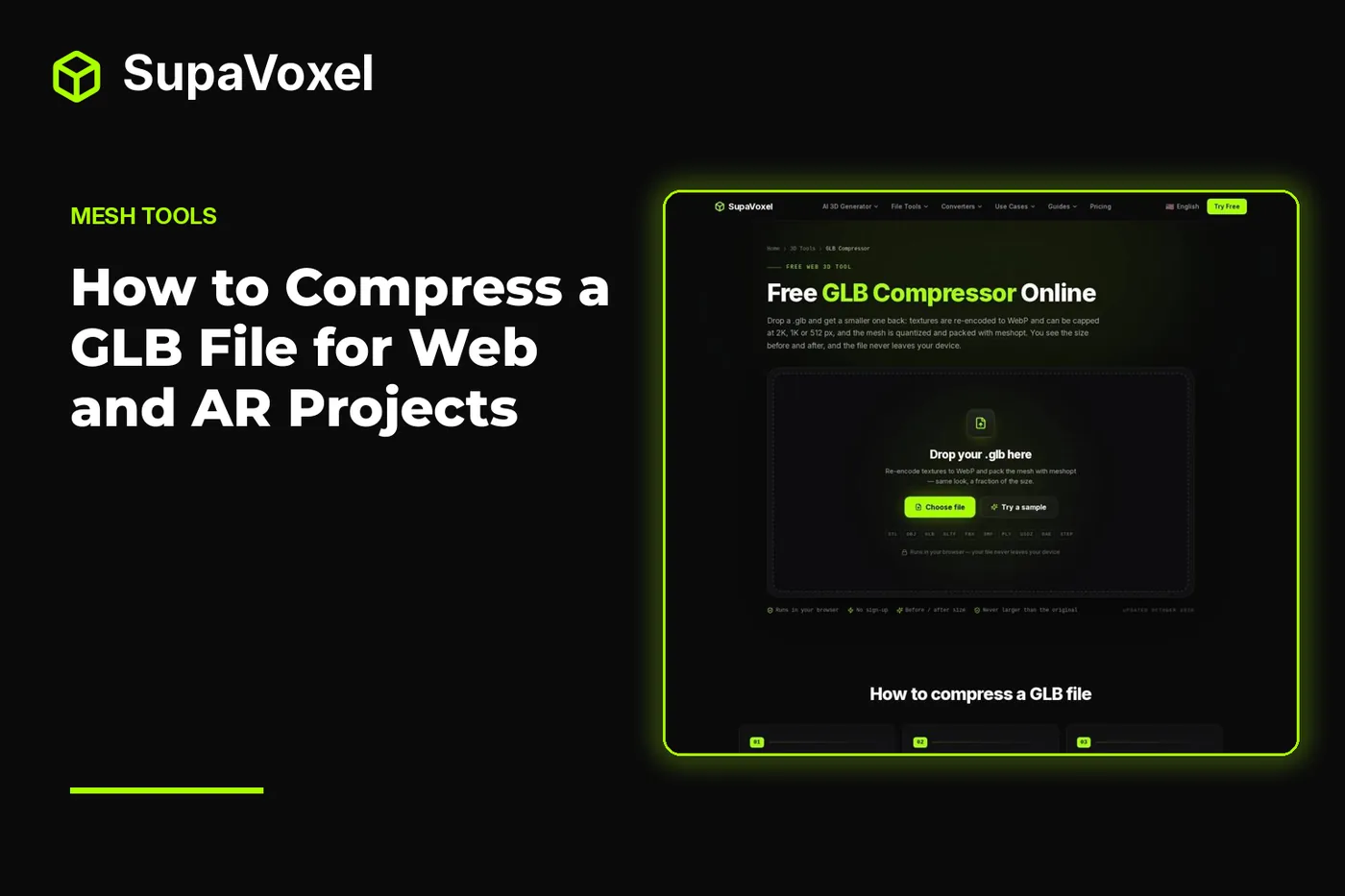
- Drop a GLB into SupaVoxel’s GLB compressor, or drop a supported format that it can convert to GLB first.
- Start with the default 2K texture limit. Use Keep for close inspection, 1K for smaller displays, or 512 for tiny previews.
- Compare the reported file sizes and inspect Original against Result before downloading the compressed GLB.
- Keep your source for editing. Test the downloaded copy in the viewer or engine that will actually display it.
What compression changes
A GLB packages a model’s scene data, geometry, materials, and images in one file. That makes it convenient to deliver, but it also means a large image can dominate the download even when the mesh is modest. Compressing the file is therefore not just a matter of changing its geometry.
SupaVoxel’s compressor works on images and geometry separately. It re-encodes PNG and JPEG textures as WebP, replacing an image only when the WebP version is smaller. If you choose a texture limit, it can also reduce images whose longest edge exceeds that limit. A 4K texture reduced to 2K has a quarter as many pixels; at 1K, it has a sixteenth as many. That saves space, but fine painted detail becomes softer when viewed up close.
For geometry, the tool stores positions, normals, and UVs as compact quantized values rather than full-size floating-point values. It then packs vertex and index data with meshopt. These changes target storage and delivery; they do not replace a careful visual check. A file with no textures may see less benefit because there are no large images to reduce.
The output uses glTF extensions for WebP textures, quantization, and meshopt compression. That matters later: a smaller file is useful only if its destination can open it.
Load the model and read the starting point
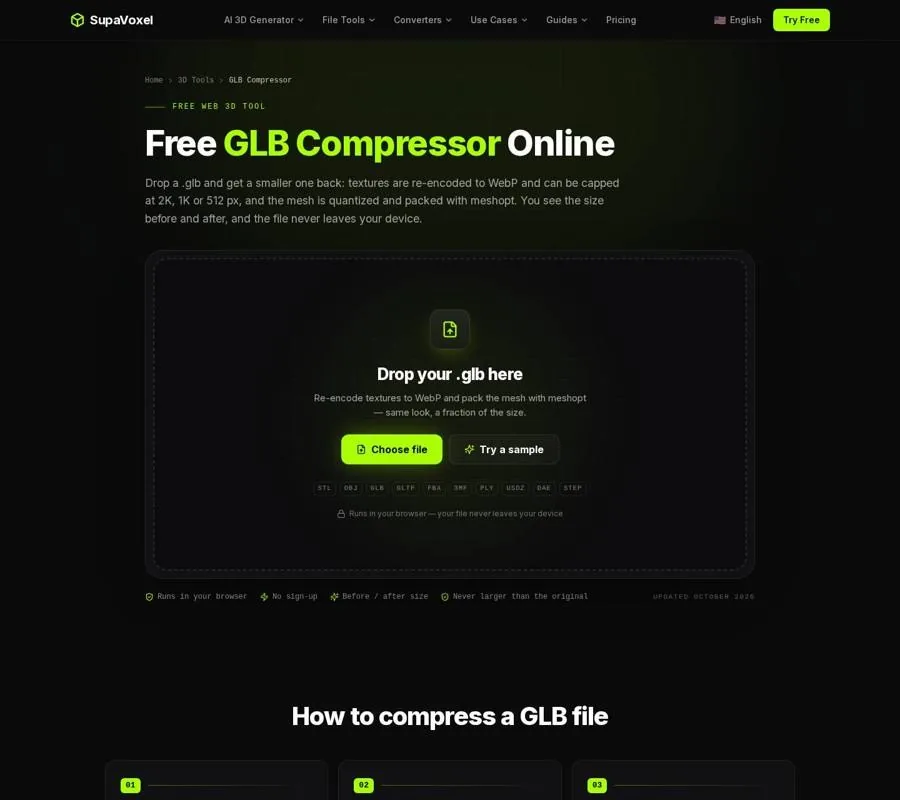
The compressor shows the input details, texture-size setting, and controls for comparing the result.
- Save an untouched source copy. Work from a duplicate if the model is still being edited. Compression is a delivery step, not a substitute for the file you use to revise materials or geometry.
- Drop in the file. The tool accepts a
.glbup to 200 MB. It also accepts OBJ, FBX, glTF, STL, 3MF, PLY, USDZ, DAE, and STEP, converting those formats to GLB before compression. If you start with another format, expect the download to be a GLB, not a compressed version of the original format. - Check the input panel. Note the file size, triangle count, and texture count. The texture count tells you whether texture downscaling is relevant; the size gives you a baseline for judging the result.
The processing runs in your browser without uploading the model or requiring sign-up. That is useful for a client asset or an unpublished design, but it does not remove the need to check the downloaded file in its intended destination.
Pick a texture limit for the way people will view it
Max texture size caps the longest edge of each texture. An image already below the chosen limit stays at its current dimensions. If the model has no textures, the setting is unavailable.
- Keep — For a model people will inspect closely. This skips downscaling while still allowing WebP re-encoding and geometry compression.
- 2K — The default and my starting point for a web product viewer, AR model, or game prop. Check lettering and surface detail rather than assuming every texture will look the same.
- 1K — Worth trying for catalog grids, mobile-first pages, and background props when the 2K result is still too large. Expect softer detail when someone zooms in.
- 512 — Suited to tiny previews or distant objects. At a larger display size, blur is likely to be visible.
Choose for the model’s actual screen use, not its most detailed possible close-up. A small preview does not need the same image detail as a product people can rotate and zoom. Conversely, a texture containing fine labels deserves a closer comparison than a broad, flat-color surface.
I usually start at 2K, inspect the result, and only try 1K if the file still misses the project’s size budget. That order makes it easier to tell which visual change came from the more aggressive setting. Keep the source file available so you can repeat the export with a different limit.
Compress, compare, and download
Press Compress GLB. The tool reports the size before and after, the percentage saved, and the processing time. The stage also has an Original / Result toggle. Use it before downloading: orbit around the model, zoom into recognizable details, and look for softened text, painted edges, or changes to small material features.
Do not judge the result by the percentage alone. A large saving is a poor trade if the asset’s important detail no longer reads at the size people will see it. A small saving may be perfectly reasonable for a model that was already compact or had no textures to downscale.
When you are satisfied, download the result. Its filename ends in -compressed.glb. If compression would make an input GLB larger, the tool returns the original instead and notes why. That is a useful safeguard, not evidence that something failed.
The downloaded GLB is the copy to test and deliver. Leave your editable source under its own name so a later change does not require reconstructing it from the compressed output.
Check the downloaded file in a viewer
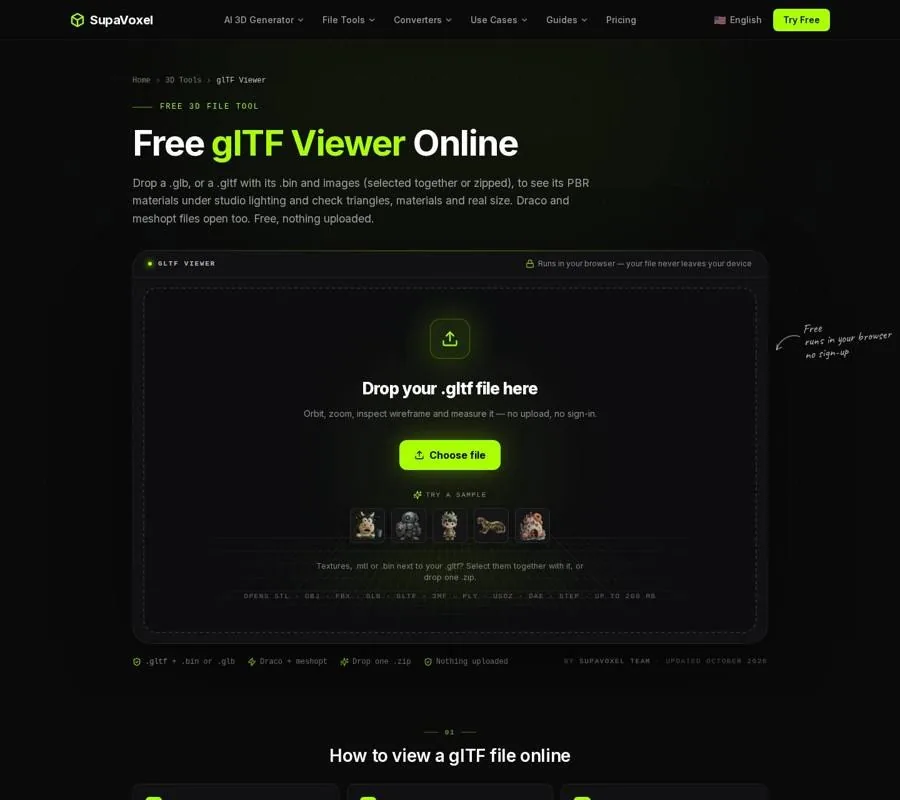
The viewer provides material inspection, wireframe and clay modes, and model statistics.
Open the downloaded GLB in SupaVoxel’s glTF viewer to check its materials, geometry, and reported size after compression. The viewer opens meshopt-compressed files and WebP textures, so it is a useful independent inspection of what you downloaded rather than just the compressor’s preview.
Start with the textured view. Check that images resolve and that reflective or rough surfaces still read as intended. Then use clay mode to look past the textures and wireframe to inspect the visible topology. The statistics show triangles, materials, textures, and dimensions. For AR work, pay attention to dimensions: glTF defines its unit as the meter, so an unexpected size can become an obvious placement problem.
Finally, open the compressed copy in its actual web viewer, engine, or marketplace workflow. Not every application supports every glTF extension. An empty model or missing textures there may mean the destination cannot decode meshopt or WebP, even if the file opens correctly in the glTF viewer. In that case, use the original for that destination rather than assuming the model itself is damaged.
Keep an editable version for later changes
A compressed GLB is convenient to ship; it is less convenient as the only record of your work. Keep the original GLB and any source project or textures you used to make it. If a material needs repainting, make the edit in the source and produce another delivery copy.
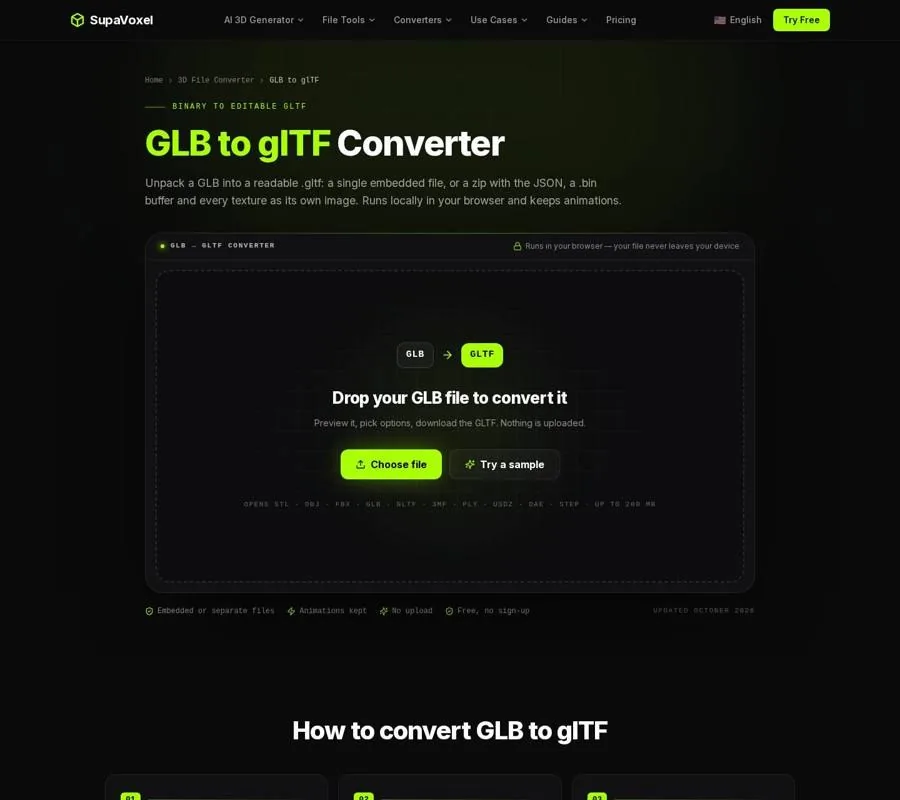
The converter offers an embedded glTF or separate JSON, geometry, and image files.
If a GLB is all you have and you need accessible scene data or image files, SupaVoxel’s GLB to glTF converter can unpack it into a readable .gltf, either with embedded data or as a zip containing the JSON, a .bin, and separate textures. The separate-files option makes an image practical to repaint, but keep the files together: the JSON refers to them by relative path.
That conversion is an editing route, not another compression step. Draco or meshopt data is decoded on load and written out uncompressed, so the unpacked geometry can be larger. Textures are re-encoded, and some extensions are not carried over. For future revisions, the safest sequence is to edit your preserved source, inspect it, then compress a fresh delivery GLB.
FAQ
Should I use Keep or 2K?
Start with 2K for a typical web or AR display, then compare important details up close. Choose Keep when close inspection matters more than the additional saving from downscaling.
Why did the file barely shrink?
It may already have compact textures, or it may have few textures at all. The tool reports the actual before-and-after sizes and returns the original GLB if compression would make it larger.
Can I send the compressed GLB to any app that accepts GLB?
Not safely without testing. The output uses meshopt, quantization, and WebP extensions, and some importers do not support them. Keep the original and try the compressed copy in the destination before shipping.