
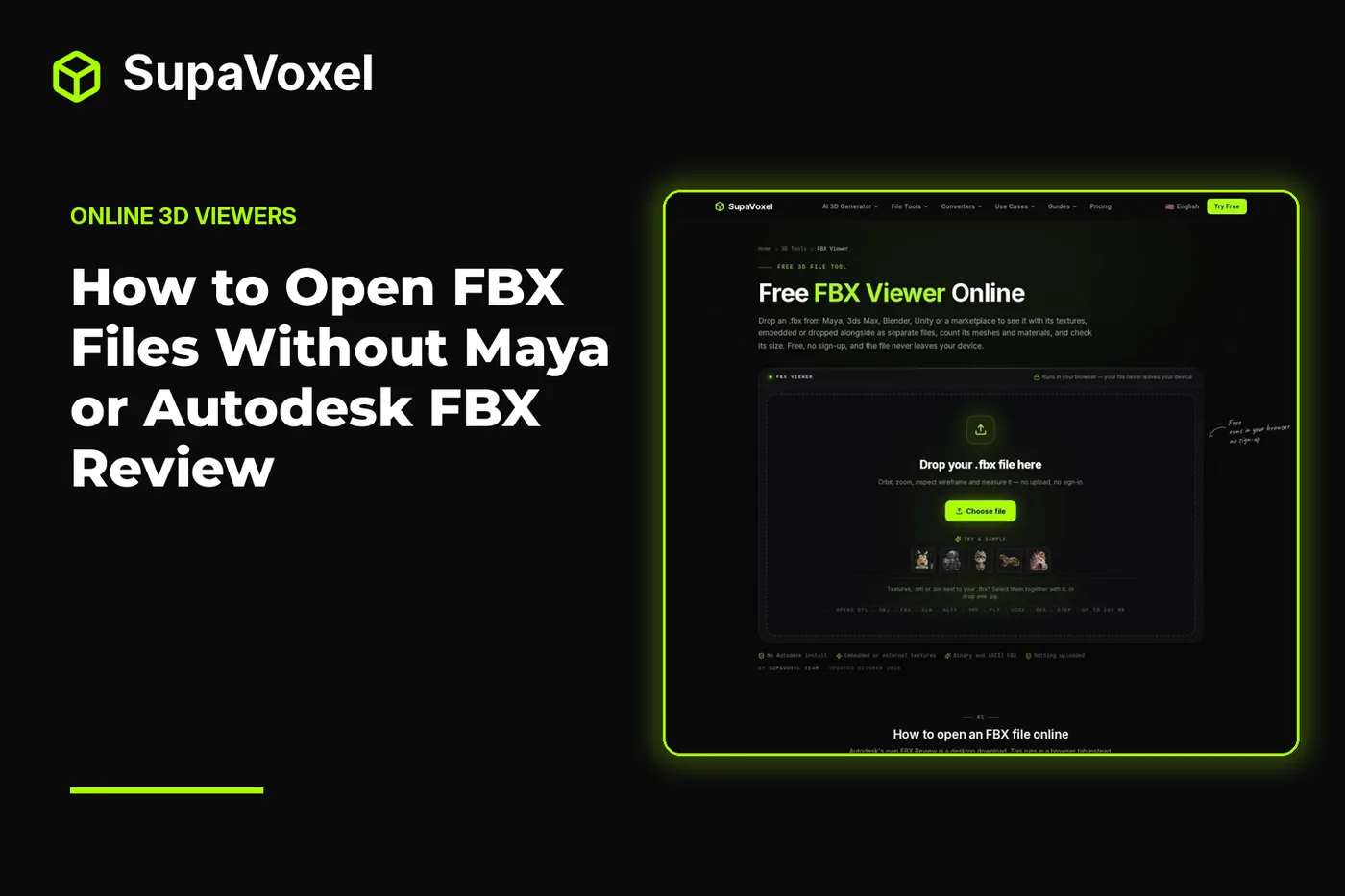
Looking for a glb viewer? This guide shows how to inspect an FBX in your browser, check its contents and animation, and choose a format without Maya or Autodesk FBX Review.
An FBX can look fine in a thumbnail and still arrive with the wrong scale, an unexpected collection of meshes, or an animation that breaks between poses. I open the file in a browser first, inspect what it contains, and only then choose a format for sharing or editing.
The short version
- Open a binary or ASCII file in SupaVoxel’s FBX viewer to inspect it in your browser without installing Maya or FBX Review.
- Check the parts panel, then use wireframe and clay mode to separate mesh detail from material detail.
- If the file contains animation, play and scrub its clips. Check the bounding box before assuming the model is the right size.
- Choose GLB to share an animated asset, OBJ for a static mesh in another 3D program, or USDZ for a static Apple AR preview.
Open the original FBX first
Converting an unfamiliar FBX straight away makes problems harder to diagnose. If the result is sideways, tiny, or missing a part, you need to know whether the issue was already present in the source. I start with the original file and treat the browser preview as an inspection step, not a replacement for an editing application.
- Load the file. Drag the
.fbxonto the viewer or use Choose file. It reads binary and ASCII FBX; you can also use Try a sample to learn the controls before opening your own asset. The viewer is free, needs no sign-up, and processes the file on your device. - Move around it. Orbit, zoom, and pan until you have checked the front, back, and underside. A flattering starting angle can hide an awkward silhouette or an object floating away from the rest of the scene.
- Read the panel. Note the mesh, material, texture, vertex, and triangle counts, along with the bounding-box dimensions. These give you questions to investigate as you inspect the model, rather than a verdict on quality.
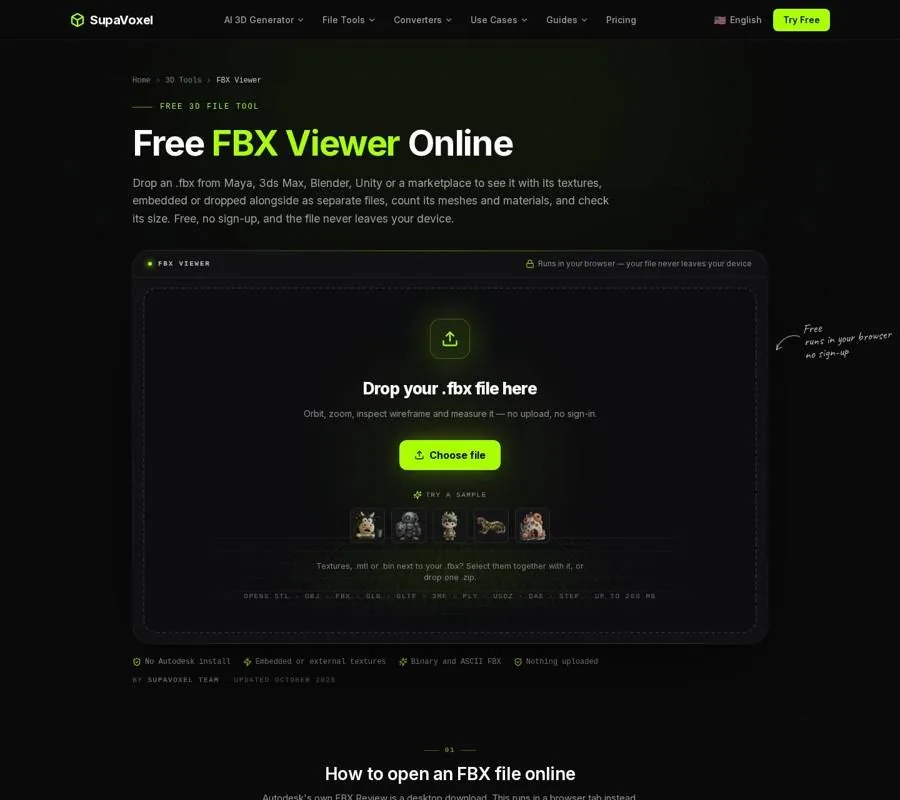
The FBX viewer provides a model preview alongside counts and controls for inspecting the file.
An FBX may contain more than visible geometry. This viewer also reads skeletons and animation clips, while using its own lighting rather than the file’s cameras and lights. That distinction matters: use the preview to judge the asset, but do not expect it to reproduce an authored camera shot.
Inspect meshes, materials, and actual geometry
Start with the parts count. Separate meshes can be useful: a vehicle’s wheels, body, and glass may need different handling later. But a prop split into many small pieces may require more cleanup than its shaded preview suggests. Likewise, material count matters when the destination is a game engine. A model that looks like one object may still contain many material assignments.
Next, switch on wireframe. Shading tends to disguise polygon density; wireframe exposes it. I look for dense areas that serve the silhouette or deformation, and dense areas that add little visible value. I also check whether the topology changes abruptly around joints or other places likely to move. The triangle and vertex counts tell me the overall size of the mesh, while wireframe shows where that geometry sits.
Then turn on clay mode. By hiding textures, it answers a different question: is that groove, seam, or raised edge part of the mesh, or is it painted into a texture or normal map? This is especially useful before deciding what to do with a model. A detail that exists only in a map will not suddenly become a raised feature in a plain geometry export.
Do not treat the material count as proof that every surface will look identical in another application. Formats describe materials differently, and converters may approximate their appearance. For now, establish what the FBX contains and whether its bare shape meets your needs.
Play the animation, not just the pose
A rigged character standing still tells you little about its motion. If the FBX contains animation takes, the viewer starts the first clip when the file opens. Use the controls beneath the preview to pause, scrub the timeline, pick another clip, or change playback speed from 0.25× to 2×. Rest pose lets you see the model without a clip applied.
I check transitions around bends and turns rather than watching only a looping overview. Scrubbing slowly can reveal a joint that pops, a limb that intersects the body, or a piece of clothing that moves unexpectedly. If the panel reports several clips, inspect each one you intend to use; a good-looking idle pose says nothing about a separate walk cycle.
Keep the inspection focused on what the viewer can show. It can play clips and report bones and clips, but it does not make decisions about how your destination application will use the rig. Record the clips you need to preserve before choosing an output format. That choice is consequential: GLB can carry a skeleton and animation, while OBJ and the USDZ produced by the converters discussed below are static results.
Check the scale before sending the model onward
The bounding box is more useful than an impression that the character “looks about right.” The FBX viewer reports its dimensions in centimeters. Compare the height with something known about the asset: the page’s guidance puts a human character at about 170 to 190 cm. A character reading 1.8 cm tall deserves a unit check before import.
Units are easy to lose track of because formats and applications do not all interpret them the same way. FBX can declare a unit scale; OBJ does not specify units, so the receiving application makes an assumption. GLB and USDZ use meters. A character that is 180 cm tall should therefore read 1.8 m after a correctly scaled conversion to either of those formats.
Do not fix a surprising dimension by blindly scaling the object in the destination program. First find out what units the source used, then check the converter’s File units and Output size where those controls are available. That keeps the exported dimensions deliberate and makes later imports easier to reason about.
Choose a format for the next job
Keep the original FBX if you still need to edit it in an FBX-capable application. If you need a different deliverable, choose according to the information that must survive—not just the file extension someone requested.
For an animated asset headed to the web, a browser-based scene, or AR that accepts GLB, use the FBX to GLB converter. It keeps meshes, hierarchy, skeletons, skin weights, blend shapes, and animation takes as clips. It can package supplied textures into the same file and converts centimeters to meters; check File units if the source used another scale. Constraints and IK solvers do not travel as editable rig-building tools, so bake their resulting motion to keyframes before exporting the FBX.
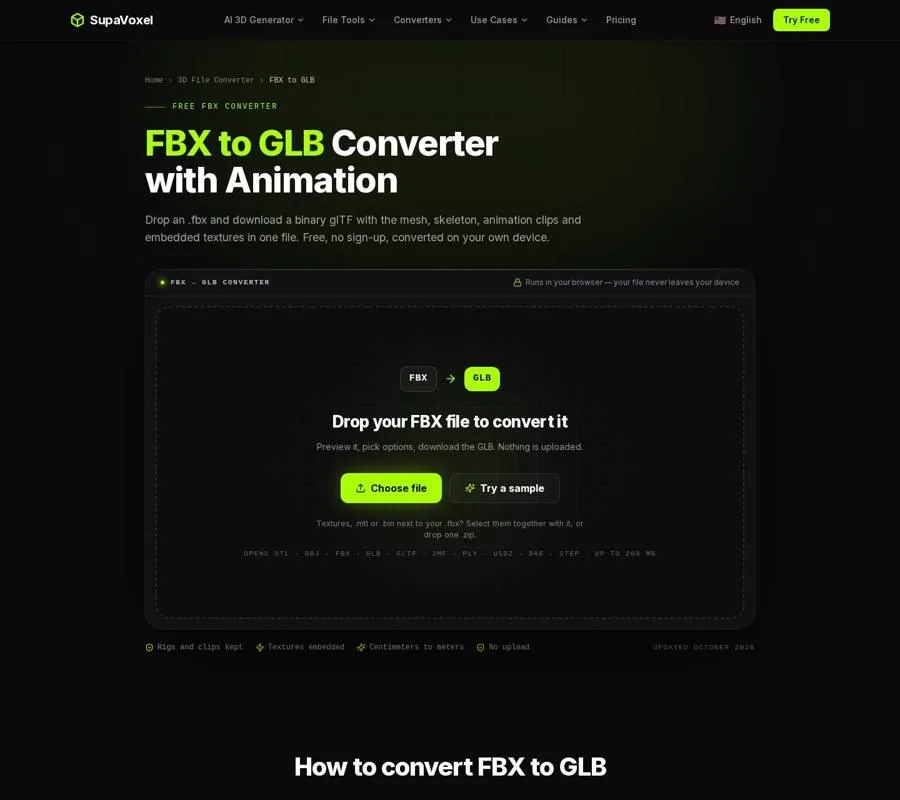
The FBX to GLB page previews the model and reports what can carry over, including animation clips.
For a static mesh that another 3D program needs to read, use the FBX to OBJ converter. It keeps meshes as separate objects, along with normals and the first UV set; with materials included, it supplies an OBJ, MTL, and texture PNGs. A rigged mesh is written in its loaded pose. Bones, blend shapes, and animation do not survive, so pose the character in the source application first if that pose matters.
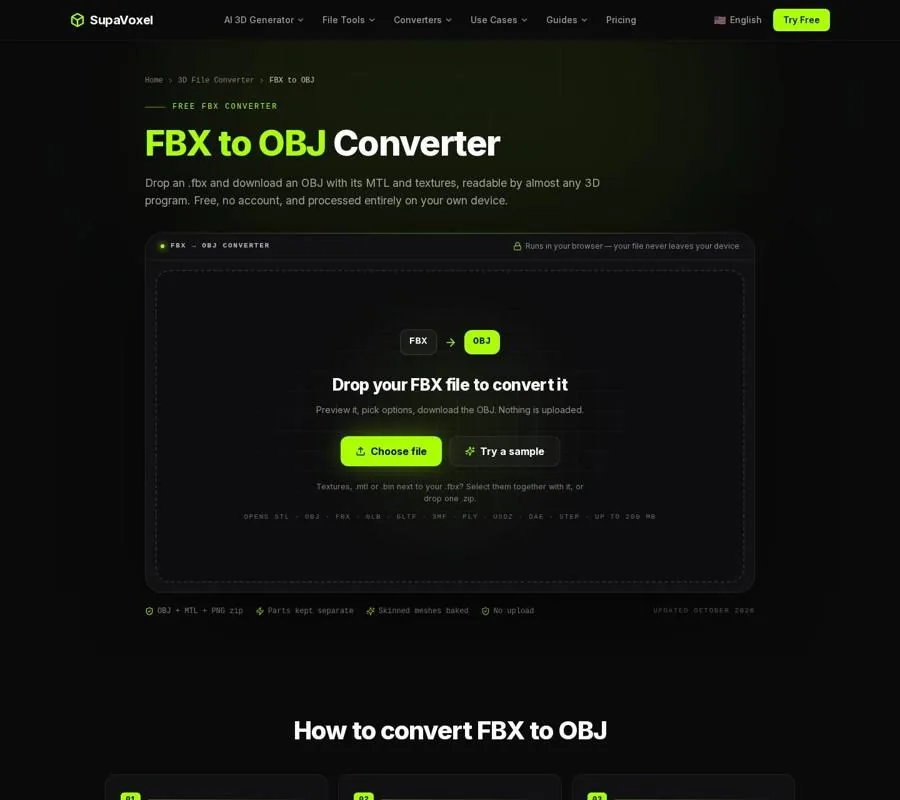
The FBX to OBJ page offers a static export with an option to include material and texture files.
For a model someone needs to open in AR Quick Look on an iPhone or iPad, use the FBX to USDZ converter. Check its output size before converting. This converter produces a static USDZ: it bakes skinned characters into their rest pose and drops animation takes. It also resizes included texture images so their longest side is at most 1024 px. That makes it a different handoff from an animated GLB, even when both begin with the same FBX.
Make a final handoff check
Before sending anything, I return to the original inspection notes. Is the expected number of meshes present? Did I account for the material assignments? If motion matters, did I inspect the relevant clips and choose a format that keeps them? Does the output size match the intended real-world size?
Also check the visual appearance of the converted file in its destination. A preview of the FBX establishes what you started with; it cannot prove that a different material system will render every surface the same way. When the deliverable is OBJ, keep its MTL and texture files together. When it is GLB, confirm that the clips and textures you intended to include are present. A deliberate handoff starts with knowing what the original contained and ends with checking what the recipient will actually open.
FAQ
Can I open an FBX without an Autodesk account or installation?
Yes. The browser viewer opens supported binary and ASCII FBX files without sign-up or an Autodesk installation. The file stays on your device.
Why does the model look detailed in shaded mode but plain in clay mode?
Some apparent detail may come from textures or a normal map rather than geometry. Use wireframe and clay mode together to see what the mesh itself contains.
Will converting my animated FBX to OBJ keep the motion?
No. OBJ is a static mesh format. The converter writes a rigged mesh in its loaded pose and drops its skeleton and animation; choose GLB when you need those clips to survive.