This piece is relevant if you found it through glb viewer: it follows a character picture into a textured GLB, then shows why a VRChat avatar still needs reduction, rigging, Unity setup and upload.
Start with a character drawing, make a textured mesh, and carry it through reduction, rigging, Unity setup and upload. The important distinction is that a picture-to-model tool makes the mesh; a working VRChat avatar still needs a skeleton, an avatar descriptor and a clean SDK build.
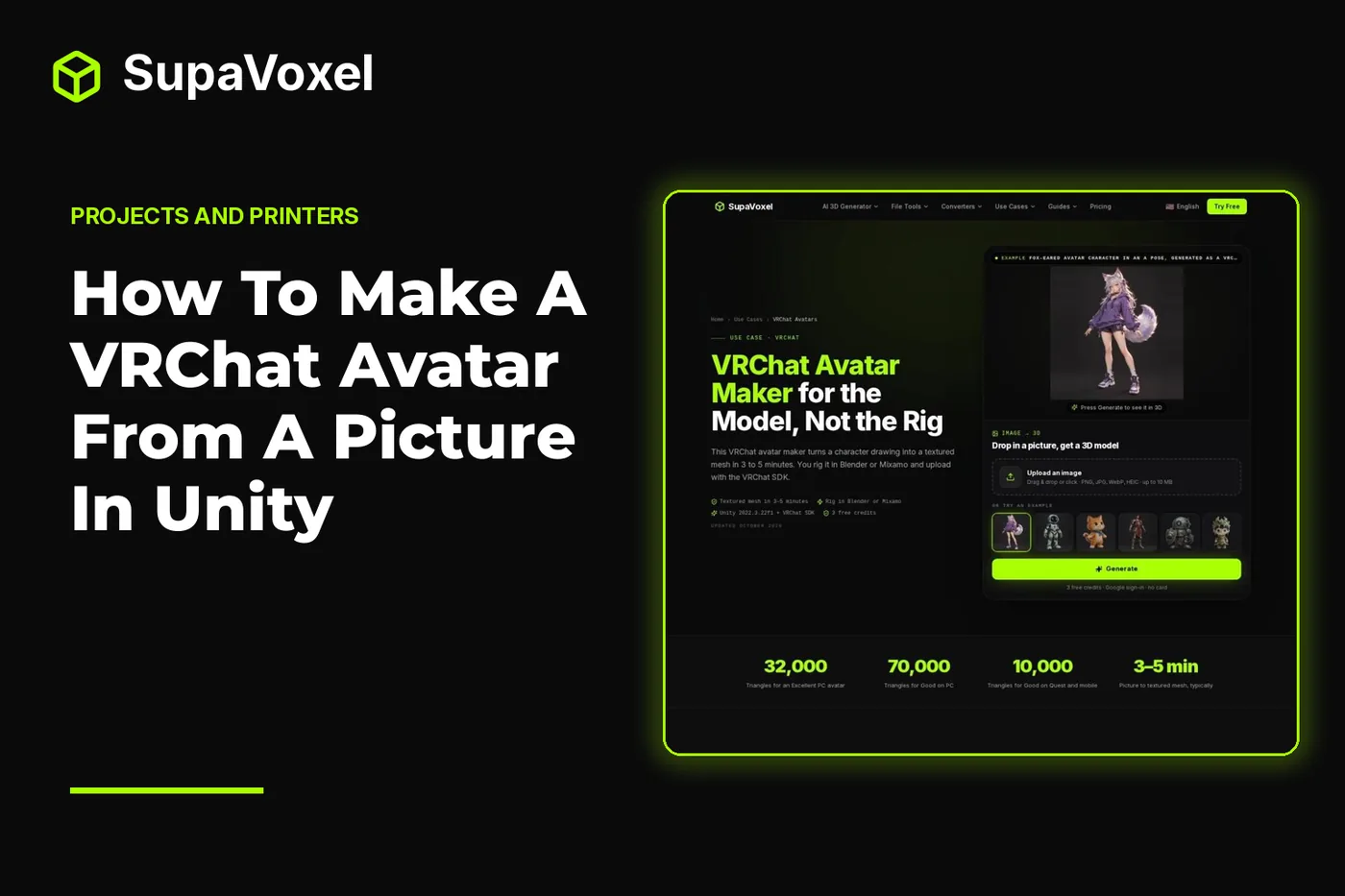
The short version
- Use a full-body drawing with clear gaps around the arms and legs. A T-pose or A-pose makes the later rigging work easier.
- SupaVoxel’s VRChat avatar maker turns the picture into a textured GLB, but it does not rig or upload the character.
- Reduce the mesh before rigging, then use Mixamo for a clear humanoid or Blender for a character that needs a custom skeleton.
- In Unity, set the rig to Humanoid, add a VRC Avatar Descriptor, check SDK warnings and test locally before uploading.
Start with a drawing the rig can read
1. Prepare the character picture. Put the entire character in frame against a plain background. Face the character forward or at a slight angle, with arms away from the torso and legs separated. If you have a reference sheet, a T-pose or A-pose is the best starting point.
This is more than a presentation choice. A mesh generator has to infer the shape hidden behind the drawing, and a rigger later has to identify the head, torso and limbs. Crossed arms, hands in pockets or clothing that merges into the legs make both jobs harder. Keep hair and clothing reasonably close to the body if you plan to use automatic rigging.
Decide early what kind of character you are making. A stylized humanoid with distinct arms and legs is a sensible Mixamo candidate. A creature with extra limbs, large wings or an unusual body plan is more likely to need manual work in Blender. Don’t treat rigging as a minor export setting: it determines how the mesh bends when the avatar moves.
Generate the mesh, then check what you have
2. Generate and download the model. Upload the picture and choose a textured generation if the drawing’s colors are part of the finished look. You can add up to 4 extra reference angles, such as a back view, rather than leaving the unseen side to be guessed. Download the resulting GLB.
The picture-to-textured-mesh step typically takes 3–5 minutes. New accounts get 3 free credits at sign-up; a textured model costs 3 credits on a paid plan, with plans starting at $25 a year. Keep the source drawing and downloaded GLB. You will need the original appearance as a reference when checking materials later.
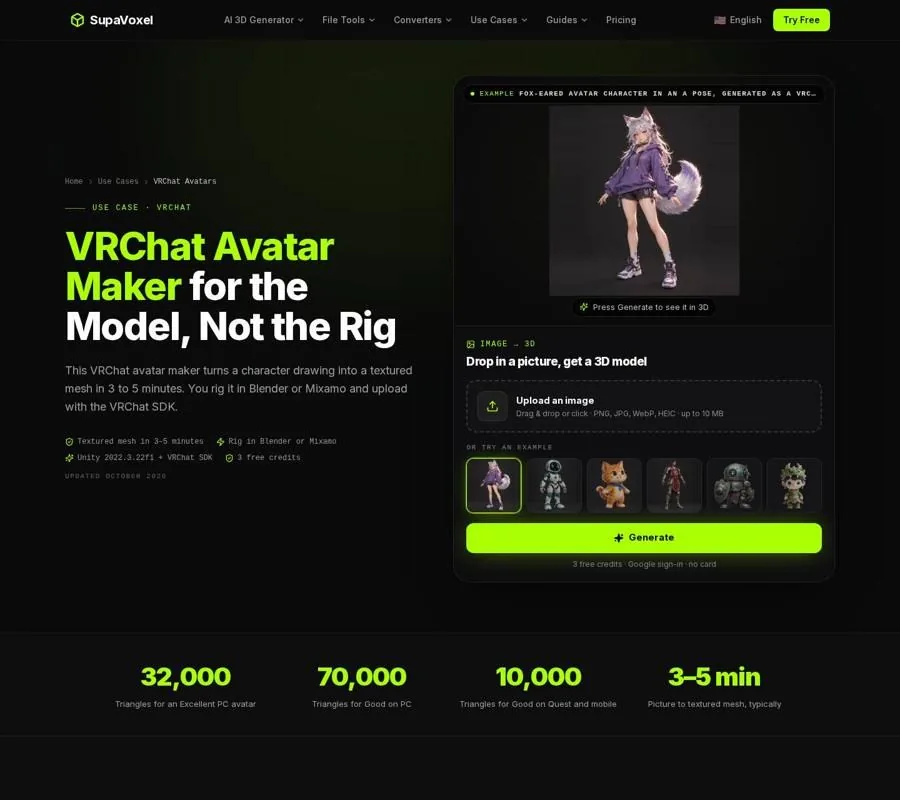
The VRChat avatar page covers mesh generation and the work still required before upload.
Open the GLB in Blender before committing to a rig. Rotate the view and look for fused limbs, gaps in the surface or shapes that differ badly from the drawing. Check the back as carefully as the front. If a hand has merged with the torso, an automatic skeleton cannot restore the missing gap. It is better to revise the input picture than to spend time weighting a mesh whose basic shape will not deform properly.
Reduce triangles before you add bones
3. Simplify the static mesh. Generated meshes can be far denser than a VRChat avatar needs. In Blender, check the triangle count and use a Decimate modifier in Collapse mode to bring it down. The VRChat page gives a practical example: a 500,000-triangle mesh at a 0.06 ratio becomes about 30,000 triangles, below the 32,000-triangle PC Excellent threshold.
Treat that ratio as an example, not a setting to apply blindly. Inspect the face, hands, clothing edges and silhouette after reduction. Those areas show damage sooner than broad, smooth surfaces. Rotate the model as you work; a front view alone can hide a collapsed profile.
Do this before rigging. Reducing a static mesh lets you judge its shape without also having to diagnose changes to skin weights. For this project, aim to make a character that both bends acceptably and fits the intended VRChat performance rank. The SDK build panel will give you another chance to inspect the result after import.
Choose the route to a rigged FBX
4. Rig the character. If the model is a conventional biped, Mixamo offers an automatic route. It needs a static figure with a recognizable head, body, arms and legs. Export an FBX from Blender for Mixamo, or use SupaVoxel’s GLB to FBX converter when you need to turn the downloaded GLB into a Mixamo-ready static mesh.
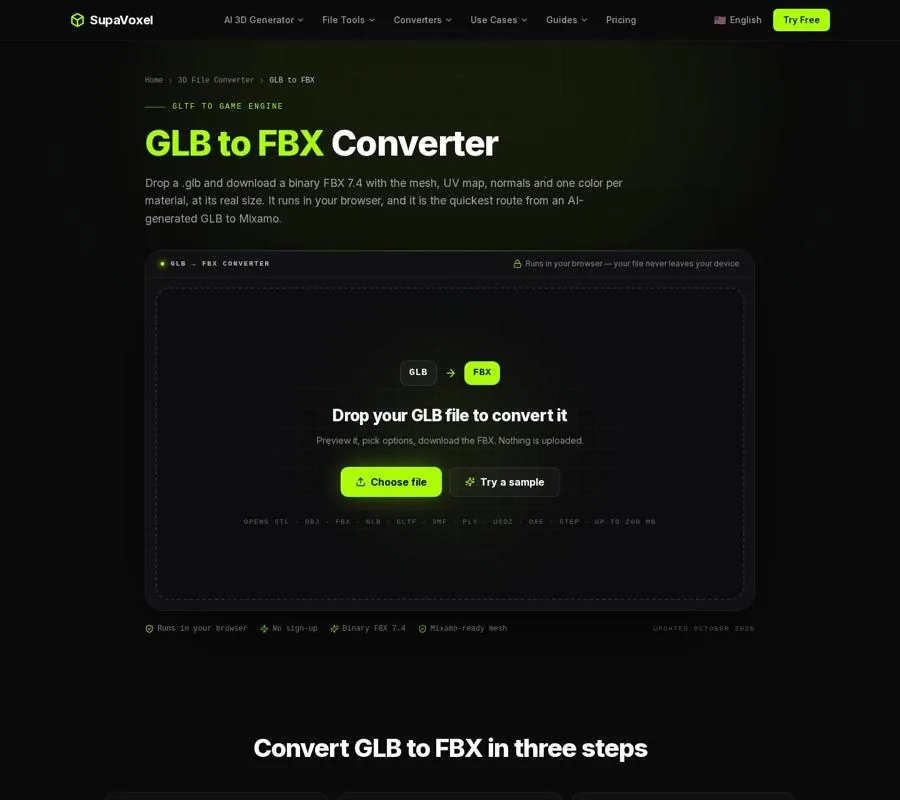
The converter makes a static FBX for the rigging stage; it does not create a skeleton.
There is an important material catch. The browser converter keeps geometry, UVs and normals, but it does not embed the GLB’s texture images. It gives each material a representative color instead. A flat-colored preview in Mixamo does not mean the UV layout has vanished. Keep the original GLB so you can reassign the texture images when assembling the final asset. The converter also drops existing skeletons and animations, so it is for a mesh you intend to rig, not for preserving an already animated character.
Upload the static FBX to Mixamo and place the requested rig markers at the chin, wrists, elbows, knees and groin. Check how the resulting skeleton moves the character rather than accepting a successful upload as proof of a good rig. If the character’s proportions or extra parts defeat automatic rigging, use Blender to build and weight a suitable armature instead. SupaVoxel supplies no skeleton, blend shapes for visemes or eye tracking, and no FBX export from the avatar generator itself.
Configure the avatar in Unity
5. Import the rigged character. Install Unity 2022.3.22f1 and the VRChat SDK through the VRChat Creator Companion. Bring in the rigged FBX, then set its Rig type to Humanoid. Verify the bone mapping rather than assuming an FBX that opens correctly is ready for VRChat.
A Humanoid avatar needs the expected body structure, including mapped head, hands and feet, with hips, spine, chest, neck and shoulders in the proper hierarchy. A missing or misplaced bone is a rig problem, not something a different texture or mesh export will fix. Check the character’s appearance in Unity too: if you used the browser conversion route, confirm that the intended texture images have been assigned rather than relying on its flat material colors.
6. Add the avatar descriptor. Add a VRC Avatar Descriptor to the avatar and put its view position at eye level. This is worth checking from the character’s actual head, not just from where the model’s origin happens to sit. Then open the SDK build panel and read its rig and performance warnings. Fix blocking problems before moving to upload.
Test before publishing
7. Build and test locally. Move the avatar through ordinary poses and inspect where the shoulders, elbows, knees and clothing deform. Check that the viewpoint feels right and that the materials still look as intended. If the mesh bends poorly, return to the rig or weights; if the silhouette has broken up, revisit simplification. Those are different problems and need different fixes.
When the local build is sound and the SDK has no blocking errors, upload it. VRChat uploading requires an account at New User trust rank or higher; before reaching that rank, you can still build and test locally. Keep the source GLB and your editable Blender file so later fixes do not have to start from the picture again.
Don’t carry this exact rigging recipe into another virtual world without checking its requirements. For example, SupaVoxel’s Second Life avatar creator workflow is useful for making mesh attachments and props from a picture, but Second Life uploads COLLADA files. Its rigid attachments need no rig, while a moving body or fitted clothing must be weighted to the Second Life skeleton. A Mixamo rig prepared for this VRChat project is not a substitute for that skeleton.
FAQ
Can the picture-to-mesh step make a complete VRChat avatar?
No. It makes a textured static mesh. You still need to reduce it as needed, rig it, configure it as a Humanoid in Unity, add the avatar descriptor and build with the VRChat SDK.
Why does my character appear in flat colors in Mixamo?
The browser GLB-to-FBX conversion keeps the UV map but does not embed texture images in the FBX. Keep the original GLB and reassign its images to the final asset; flat colors in Mixamo do not prevent rigging.
Why can’t I upload after the avatar builds?
Check your VRChat trust rank, the SDK build panel for blocking rig errors and the build’s size limits. Uploading requires New User rank or higher, but you can test locally before then.